
Master Automatic Time Tracking in Monday CRM
If you’re looking for the full dirt on monday.com time tracking features, you’re in the right place. Because, not only am I obsessed with monday.com (and have been for years), I am also obsessed with time tracking. And I’ve tested pretty much every time tracking tool known to man – both those that integrate with monday and those that don’t.
So, this blog post gives me the perfect opportunity to mix my two favourite topics – bonus!
But before we get into it, let’s be clear about a few things…
What this post will cover
In this post I’m going to do my best to give you a totally honest and un-biased introduction to the native monday com timetracking features – what they are, how they work, what’s good and what’s not so good.
Note that I said “native time tracking” – I’m going to do my best to keep this article focused 100% on monday’s native time tracking features and not get distracted and start talking about third party solutions. But no promises..
Pro +
The native monday.com time-tracking features we’re going to talk about in this article are only available on the Pro and Enterprise plans of any of the core Monday Products (see the next section for more info on those).
But honestly, if you told me you were considering signing up for a Monday.com paid plan below Pro Plan I would say “don’t waste your money”. Not (just) because you wouldn’t get access to the time trackoing features, but because below Pro Plan the monthly automation and integration action limit is either zero or close to it. So, either you don’t get to use any automations at all, or you can you automate about 12 things before you run out of actions and (eventually) your automations stop working. And honestly, monday.com without automations? I think there are probably better options out there.
Being able to automate pretty much anything and reduce manual busy work is a crucial part of monday’s ethos. So, to not be able to automate anything with Monday is…just plain stupid. Don’t do it.
So, my advice on pricing plans is “Go Pro or say no”. There, I said it.
Monday.com is dead.
There is no longer a product called “monday.com”. Even though we all still use that name, “monday.com” these days is the name of the company that makes the various Monday products and it’s also their domain name. But it isn’t a product any more.
These days the 4 core products that make up the Monday Work OS family of products include;
-
- Monday Work Management – this is the tool that gets marketed as a Project Management Tool. It’s basically the modern version of what the old monday.com product once was.
-
- Monday CRM – marketed as a sales CRM, it’s built on the same super-customisable no code platform as Work Management and the other tools, but it comes with a bunch of powerful unique features that users of the other tools don’t get to play with.
-
- Monday Dev – honestly I know pretty much zero about this product except…it’s for developers!
-
- Monday Service – ditto, zero knowledge of this one too except…it’s for support ticketing.
Monday.com’s various products* include native Time Tracking features on the Pro and Enterprise plans.
World’s simplest intro to native Monday com timetracking features.
When it comes to native time tracking features available in monday.com, there are actually only 2 native features – the Time Tracking Column and the Time Tracking Widget (AKA chart).
The Time Tracking Column.
The Time Tracking Column is a super simple start/stop timer column that also allows you to log time manually and edit time entries. Used in it’s most basic fashion, you just click it to start the timer and click it again to stop it.
When you do this, it logs a time entry for you as a user within the Item you are tracking time in.
Which brings us to an aspect of the Time Tracking Coumn that is both a gift and a curse at the same time – you can add a Time Tracking Column to any Board and as many Boards as you want.
Why is this a gift? Because it allows you to track time in any Board you want, which (in theory) is really convenient.
Why is it a curse? Because if you ask any Monday user about the Time Tracking Column, they will probably tell you about how they forgot to start or stop the timer pretty much every day they ever used Monday. Which is bad enough if you know what Board the Time Tracking Column lives in. But, if you say forget to stop a running timer and only remember later on when you are in a completely different board, you have to be able to find the running time tracker in order to stop it. And all the while you are searching, that timer is running and making your time tracking more and more inaccurate by the minute…
Long story short, the Time Tracking Column has a bunch of limitations that most users including me really struggle with, including;
-
- Despite Monday’s predilection for “simple colourful” interfaces, the Time Tracking Column features low contrast colours and a tiny play/stop symbol that make it really hard to tell if a timer is running or stopped at a glance. This makes it super easy to forget to stop or start the timer.
-
- As mentioned, because you can add Time Tracking Columns here there and everywhere, users do exactly that. And end up never knowing where to look to find that timer they forgot to start/stop.
-
- The Time Tracking Column combines visually all the hours worked on that Item by all users who worked on it. Yes, you can expand the column to see who logged what time entries when, but the column itself doesn’t allow you to see just one day’s worth or even a date range, the Time Traciking Column shows you all time logged every by any user for the given Item.
-
- The Time Tracking Column doesn’t generate a column total in each Group so you can’t easily see how much time has been logged in a certain Group or filtered Board View.
Hacks & Solutions for the Time Tracking Column
-
- It is possible to automate the starting and stopping of the time tracking column and this can help reduce how often users forget to start or stop time tracking. Eg you could set up an Automation like this – “When status changes to in progress, start time tracking”.
-
- If you want to see a running total you need to add a Formula Column that reflects the minutes or hours worked and will display a column total in each Group.
The Time Tracking Widget
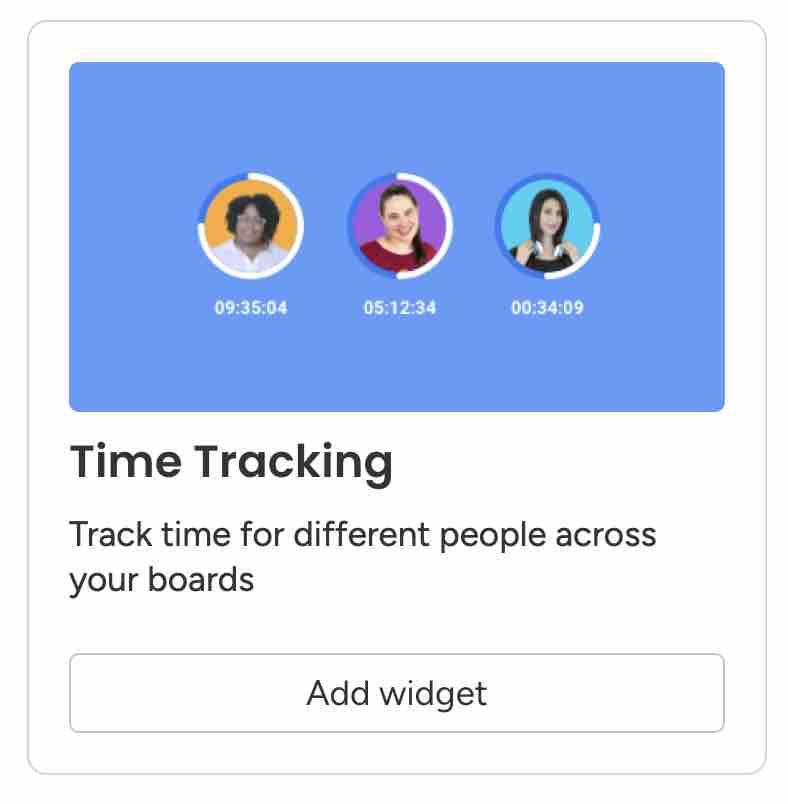
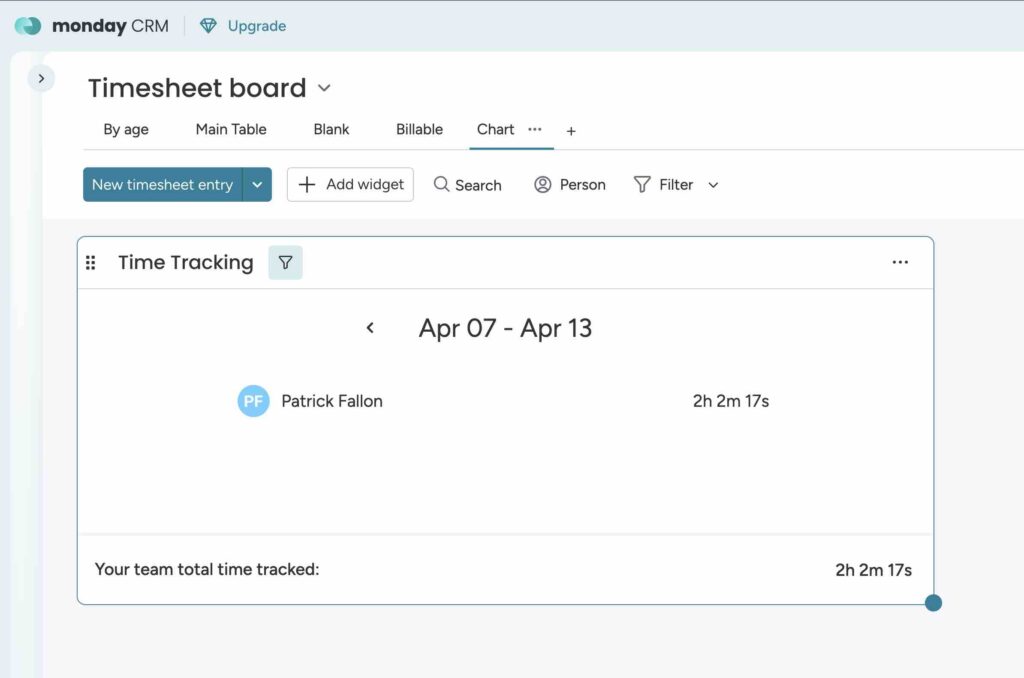
How should I put this? Imagine the most simplistic basic chart you could possibly come up with, something that is so basic and uncustomisable as to be practically useless…well, that’s the Time Tracking Widget.
It basically let’s you display time from one Board (if added to a Board View like the Customisable View) or multiple Boards (if added to a dashboard) over a date range for a select user or users.
That’s it. You can see that Patrick Fallon worked 2 hours and 2 minutes between 7 and 13 April. But that’s it. You can’t see what he worked on in that time or pretty much anything else. Just minutes and hours worked in period X.
Automating Time Tracking Monday com styles
I haven’t found a way to make the Time Tracking Widget itself even vaguely useful. But I found something better. After a ridiculous amount of time testing and tweaking, I found a way in Monday (all native solution, no third party tools required) to track time automatically in a dedicated Timesheets Board.
The advantages of this approach are many;
-
- You can track time from any Board/as many Boards as you want but you only need one Time Tracking Column and it only lives in one Board – your Timesheets Board. Not only does this mean it’s easy to find a time entry if you forgot to start or stop the timer, because you can easily see the time logged before and after the incorrect entry, it is much easier to correct any inaccurate time entries.
-
- Automations start and stop the timer for you, while you just do your work. The system isn’t foolproof and i still find myself regularly forgetting to mark a task as Done – which can leave the timer running when you should have stopped it. But it is the most accurate, least time consuming time tracking system I have used and most importantly, it allows me to track time automatically while just doing my work and focusing.
-
- Because all your work is logged as individual time entries, not only is your time tracking more detailed, you can also use any old Chart you want – or just use a filtered Board View itself – for easy and accurate reporting on your time entries.
-
- The Monday com Timetracking Column in the Timesheets Board still doesn’t display a column total, but if you add a Formula Column not only does it give you column totals in each Group or filtered board view for total time tracked, because every time entry is logged on a separate date (rather than having a whole bunch of time entries from diferent dates and users clumped together), simply adding a Formula Column gives you super detailed reporting right there in your Table view.
Learn how to track time automatically in Monday
If you want to learn how to track time automatically in monday.com the easy way, check out my "Automatic time tracking" collection on the MondayWiki Community. It includes 3 super short videos that can have you tracking time automatically in 15 - 30 minutes.